> For the complete documentation index, see [llms.txt](https://help.gan.ai/llms.txt). Markdown versions of documentation pages are available by appending `.md` to page URLs; this page is available as [Markdown](https://help.gan.ai/getting-started-onboarding/personalized-project/setting-up-your-personalized-project/background-music.md).
# Background music
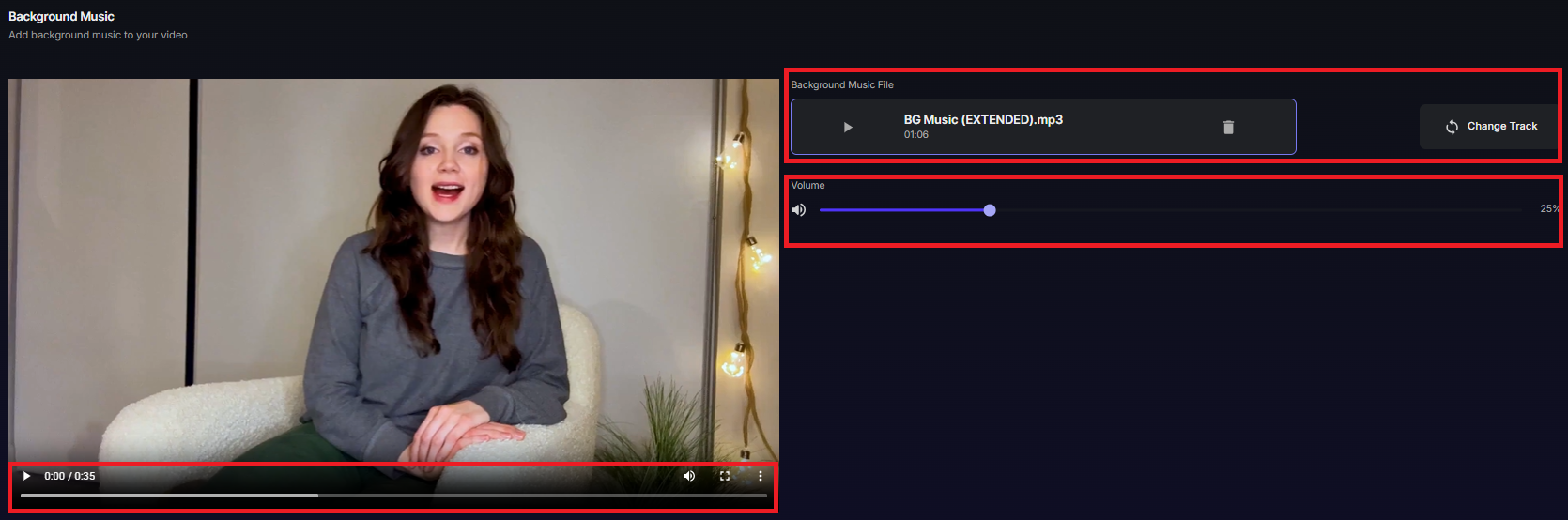
Gan.AI makes it easy to upload, replace, and fine-tune background music. Customize audio levels, preview updates, and enhance your personalized video experience.
Gan.AI also lets you switch or update your BGM at any stage of your project, giving you full creative flexibility. Once applied, you can instantly preview the final output to make sure the music complements your message perfectly before saving the changes.
#### Step 1:
* Open Your Personalized Project
* Log in to Gan.AI Dashboard
* Go to My Videos
* Select the personalized project where you want to add or update BGM
**You will now enter the main Project Workspace.**
#### **Step 2:**
1. Open the Project
2. Once you are inside the project:
* Click Project Settings.
* Look for the Background Music option on the left panel.
#### **Step 3: Add or Replace Background Music**
In the **BGM Section**, you will see the following option:
* Upload Your Own Custom BGM
* Click “Upload Audio File”
* Select your MP3 / WAV / AAC audio
* Wait for the upload to finish
**This is recommended if:**
* You have licensed music.
* You want brand-consistent sound.
* You need region-specific audio.
* You need the BGM of the exact length or a longer length according to the base video.
#### **Step 4: Adjust Audio Settings and Preview Your Video with BGM**
After uploading the BGM, you can fine-tune:
1. Volume Level
* Adjust the BGM volume as required to avoid overpowering the vocal text spoken by the speaker.
* Sync with Voiceover - Ensure the BGM complements the script pacing.
2. Click Preview Video to play back the updated version.
**Check:**
* Audio clarity
* Voice vs. BGM balance
* Timing
* Smoothness of transitions
**If the BGM is too loud:**
* Reduce BGM volume
#### **Step 5:** Save & Close to publish the Changes
When you're happy with the BGM:
* Click Save and Close.
**Important:**
* Updating the BGM does not regenerate videos
* Future personalized videos will use the updated BGM automatically
#### **Step 6:** Re-Generate Videos (Only If You Want Re-Synced Audio)
If you want to refresh every personalized video:
* Go to **Generated Videos**
* Select specific videos
* Click Re-Generate
#### Best Practices for BGM in Personalized Videos
* Use soft, non-distracting music for sales outreach
* Use upbeat BGM for marketing ads
* Keep vocals louder than the background music
* Avoid copyrighted audio unless you own full rights
* Always preview before publishing
* Keep a backup of your original BGM files in case you need to switch versions later
* Use high-quality, royalty-free audio files to ensure the best output quality
With Gan.AI’s flexible BGM tools, you can quickly shape the mood and emotional tone of your personalized videos. Whether you’re aiming for a subtle, professional ambience or high-energy marketing sound, the platform makes it easy to upload, adjust, and preview your audio in real time. Thoughtful music choices—paired with clear voice balance—help your videos feel polished, engaging, and perfectly aligned with your brand.