> For the complete documentation index, see [llms.txt](https://help.gan.ai/llms.txt). Markdown versions of documentation pages are available by appending `.md` to page URLs; this page is available as [Markdown](https://help.gan.ai/getting-started-onboarding/dashboard-overview.md).
# Dashboard overview
Gan.AI Video Dashboard – Manage Projects, Create AI Videos, Record Screens, Use Avatars & Streamline Your Workflow
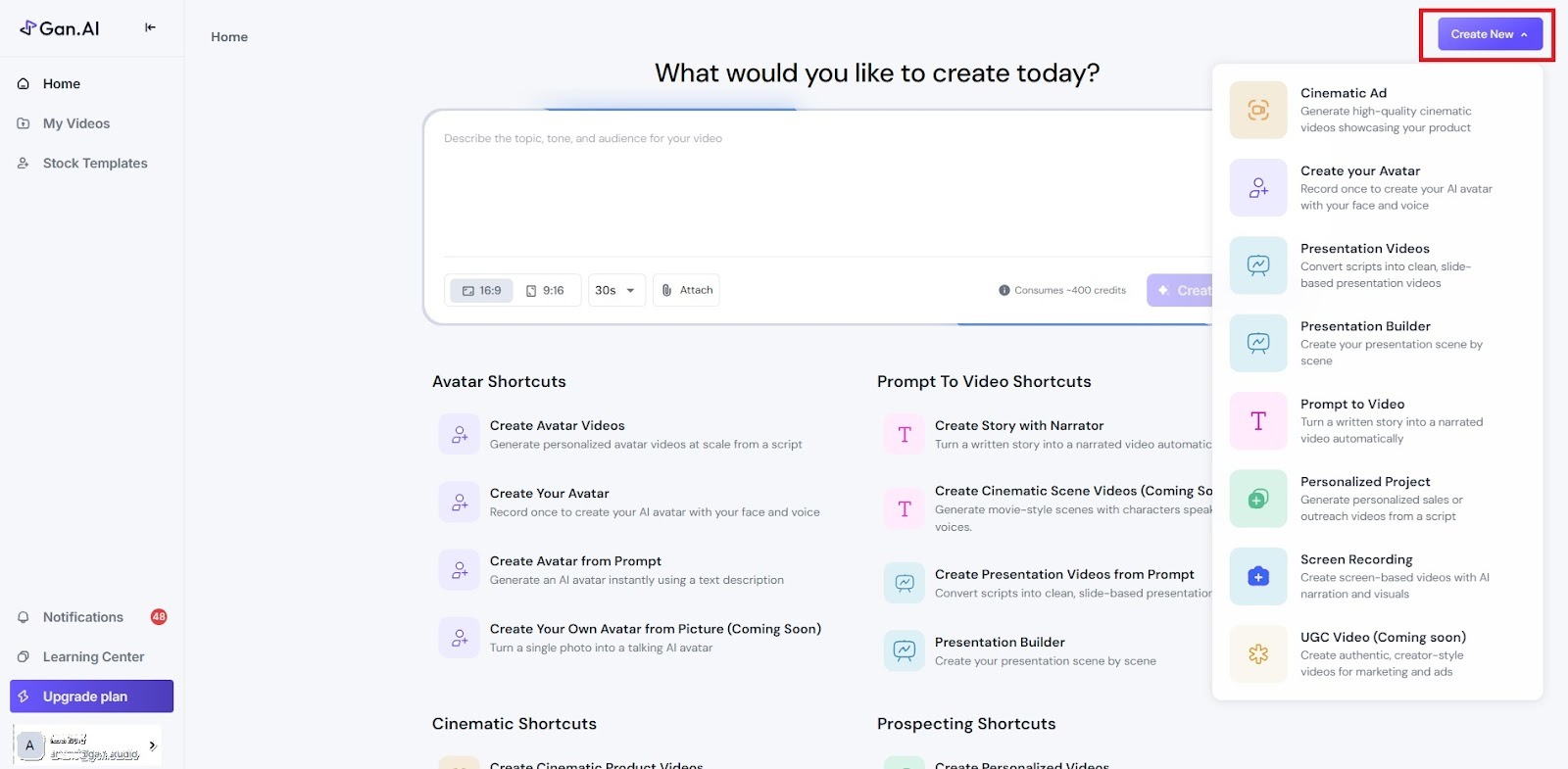
Once you’ve logged in to Gan.AI, you’ll land on the **Dashboard** — your command center for creating, managing, and tracking AI-generated videos.
The dashboard provides a quick snapshot of all your tools, projects, personalized video campaigns, and credits, helping you take control of every step in your video creation workflow.
Home
1. **Left Navigation Panel**
The left navigation panel provides quick access to the platform’s core features and account controls:
• Home
Redirects users to the main dashboard, where all creation options are available.
• My Videos
Displays all previously generated and saved videos for easy access, review, and management.
• Stock Templates
Allows users to browse and leverage pre-designed video templates for faster creation.
• Notifications
Shows important system alerts, updates, and platform announcements.
• Learning Center
Provides tutorials, guides, and educational resources to help users maximize platform usage.
• Upgrade Plan
Enables users to upgrade their subscription for additional features and credits.
• User Profile
Displays the logged-in account with options for profile and account management.
* Click “**Create Now**” to instantly generate and proceed with the creation.
1. Cinematic Ad
* Generates high-quality cinematic videos designed for product promotion and advertising.
Use Case:
* Product advertisements
* Brand marketing campaigns
* Visually rich promotional videos
2. Create Your Avatar
* Allows users to record themselves once to create a custom AI avatar with their face and voice.
Use Case:
* Personalized avatar videos
* Consistent brand spokesperson
* Sales, training, or explainer videos
3. Presentation Videos
* Converts written scripts into clean, professional, slide-based presentation videos automatically.
Use Case:
* Business presentations
* Educational content
* Corporate training videos
4. Presentation Builder
* Enables users to build presentations scene-by-scene, giving more control over structure and flow.
Use Case:
* Detailed presentations
* Custom storytelling
* Step-by-step visual explanations
5. Prompt to Video
* Transforms a written story or prompt into a fully narrated video automatically.
Use Case:
* Storytelling
* Informational videos
* Script-to-video automation
6. Personalized Project
* Generates personalized sales or outreach videos from a script, tailored for individual viewers.
Use Case:
* Sales outreach
* Lead engagement
* Personalized marketing communication
7. Screen Recording
* Creates screen-based videos enhanced with AI narration and visuals.
Use Case:
* Product demos
* Tutorials and walkthroughs
* Feature explanations
8. UGC Video (Coming Soon)
* Creates authentic, creator-style user-generated content videos for marketing and advertising.
Use Case:
* Social media ads
* Influencer-style promotions
* Trust-based marketing video
My Videos
From “**My Videos,”** you can view, manage, and edit all your saved projects. This section is your project library, where all your created, uploaded, or AI-generated videos are stored. It’s designed for quick access and easy management of your entire content library.
**Stock Templates**
This section allows you to manage your existing AI avatars or create new ones.\
You can record or upload your own video to [generate an AI avatar](https://www.gan.ai/create-your-free-realistic-ai-avatar-generator-maker-online) that speaks your scripts naturally, matching your tone and facial expressions. You can also use our stock Avatars and generate the videos.\
It also lets you preview, rename, and organize your avatars for different projects, ensuring quick access when creating new videos.
💡 **Tip: Keep multiple avatars for various communication styles — for example, one for marketing outreach and another for internal training videos.**
**Notifications:** All account, avatar, and project-related updates will appear in the **Notifications** tab, ensuring you never miss important activity.
Profile Menu Overview
Clicking the “**profile**” icon in the top-right corner of your Gan.AI dashboard opens your **Profile Menu**, where you can access important account-level settings, tools, and support options.
* **Settings:** This section allows you to manage your account details.
* **Install Extension:** Use this option to install the Gan.AI Chrome Extension. The extension helps you create and share personalized AI videos directly from your email or CRM tools — such as Gmail or HubSpot — without needing to open the dashboard.
💡 **Tip: Once installed, pin the extension in your browser for easy access.**
* **Integrations:** This option provides access to all available third-party integrations for [Gan.AI](http://gan.ai). You can connect tools like HubSpot, Salesforce, Gmail, or LinkedIn to sync data and automate personalized video campaigns.\
Integration simplifies your workflow and ensures seamless content delivery between your favorite platforms.
💡 **Tip: Always verify that your CRM or marketing tool permissions are active before connecting.**
* **Chat with Support:** Need help? Use this option to instantly connect with Gan.AI’s customer support team via live chat. You can ask questions, report issues, or request guidance on using advanced features — directly from your workspace. The support team typically responds within minutes during business hours.
**💡 Tip: Before reaching out, check the Help Center — most quick answers are already available there.**
* **Sign Out:** Click Sign Out to log out of your Gan.AI account safely. Always sign out when using shared or public devices to protect your account and project data.
💡 **Tip: Your ongoing projects are autosaved — you can continue right where you left off after logging back in.**
With the Gan.AI Dashboard as your central workspace, you have everything you need to create, customize, and manage high-impact AI videos—all in one intuitive interface. From generating ideas and avatars to organizing projects, integrating tools, and tracking performance, every feature is designed to streamline your workflow and empower you to produce professional-grade content effortlessly. Explore each section, experiment with tools, and let Gan.AI help you transform your video creation process from start to finish.