> For the complete documentation index, see [llms.txt](https://help.gan.ai/llms.txt). Markdown versions of documentation pages are available by appending `.md` to page URLs; this page is available as [Markdown](https://help.gan.ai/getting-started-onboarding/our-products/cinematic-ads.md).
# Cinematic Ads
Design cinematic ads with AI-powered avatars and visuals. Create film-style, personalized videos quickly, customize tone and assets, and render studio-quality results.
**Why Cinematic Ads using Gan.AI?**
Cinematic ads using Gan.AI let brands create stunning, film-quality videos in minutes—without cameras, actors, or studios. Powered by our AI avatar generator and voice technology, Gan.AI turns simple scripts into emotionally engaging, personalized ads that connect with every viewer. It’s fast, scalable, and cost-effective—perfect for brands that want high-impact storytelling with cinematic flair and human-like authenticity.
**KEY FEATURES**\
\
**AI-Generated Cinematic Quality:** Create movie-like AI video ads using avatars, voices, and visuals.
**No Studio Needed:** Produce professional videos without cameras, actors, or heavy production costs.
**Mass Personalization:** Customize ads for different names, regions, or languages—instantly and at scale.
**Emotion-Led Storytelling:** Blend visuals, sound, and narrative to form deeper audience connections.
**Multi-Platform Compatibility:** Perfect for YouTube, Instagram, LinkedIn, and all digital ad platforms.
**Faster Production, Higher Impact:** Deliver premium-quality ads quickly while boosting engagement and brand recall.
**Your Cinematic Advertisements: Quick and Fun Creation Steps**
Once you log in, you’ll land on the Gan.AI Home screen. At the top, you’ll see the text box asking, “What would you like to create today?” — this is where your cinematic ad journey begins. Enter a short, engaging script or tagline describing your product or story.
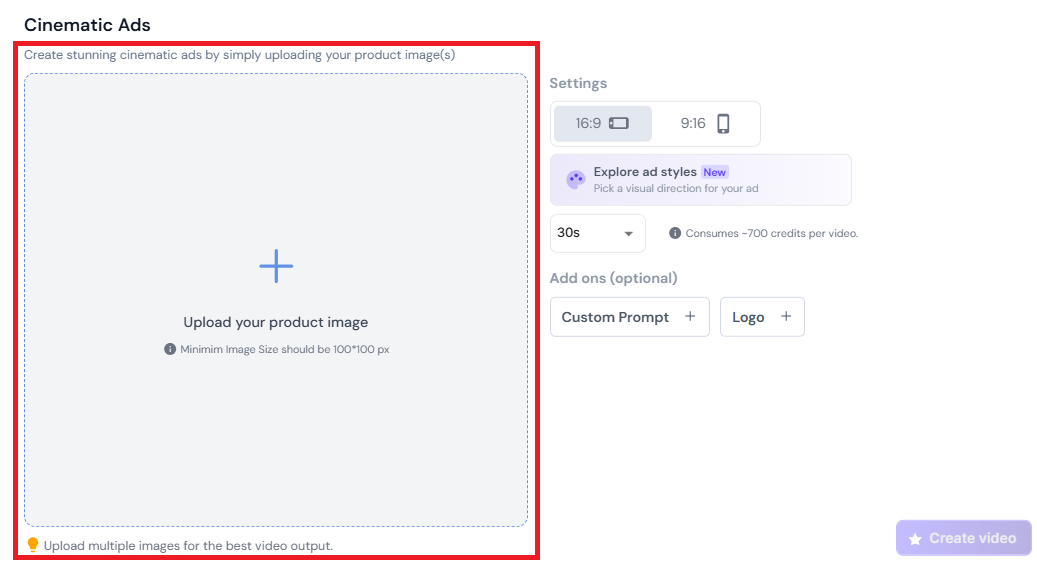
After you have finished your script or tagline. You need to upload an image as it plays a critical and multi-faceted role in creating cinematic ads with Gan.AI. It transforms basic text-to-video generation into a rich, visually sophisticated narrative experience.
Ensure your script or prompt includes all specifications: tone (professional, dramatic, upbeat). Include these details explicitly so Gan.AI generates exactly what you need without revisions. More specificity = better results.
**Settings Section**\
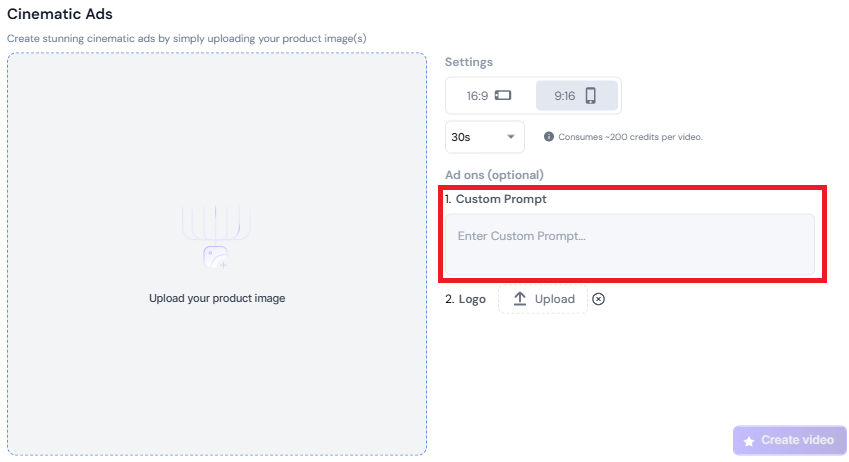
Located in the middle of the pop-up window, just under the description box. This area lets you configure video layout, orientation, and upload media assets. It includes multiple UI components -\
\
**Orientation**\
Defines your video’s aspect ratio or frame size. It contains 2 aspects -\
\
**16:9 (Widescreen)** – Ideal for YouTube, LinkedIn, or websites.
**9:16 (Vertical)** – For Instagram Reels, TikTok, or mobile-first ads.
**Choose an ad Style:** \
Selecting the right ad style defines the look, mood, pacing, and storytelling approach of your video.
**Duration:** It will allow you to select the duration of the video you want to create.
**Custom Prompt**
This is the main input box where you type your creative brief or video ad idea. It guides the AI to generate scenes, tone, and structure accordingly.
**Product Images – “Upload Your Product Image"**
Use the “Upload Image window" to add the product image you want to use for creating the ad.
**Logo Button**
The Logo feature lets you add your brand identity directly into the cinematic ad. It ensures that your videos consistently represent your company or product visually, maintaining brand recognition, trust, and professionalism.
**Create Video Option**\
Once everything has been finalized, kindly click on the Create Video option. The cinematic advertisement will appear under the My Videos Tab.
**Another way to start your cinematic ads journey is to click on the “Create Now” option and select cinematic ads.**
After clicking on the Cinematic Ads option, you need to upload an image and fill all the requested fields, as it plays a critical and multifaceted role in creating cinematic ads with Gan.AI. It transforms basic text-to-video generation into a rich, visually sophisticated narrative experience.
**Edit Option**
In case you want to edit your advertisement. You can do it by simply clicking on the Edit Video option.
**Project Title Bar**
At the very top of the screen, you can set or edit the project title for your video/Ad. Simply by clicking the pencil ✏️ to rename it anytime for easier tracking.
**Save Button:**
Located towards the top-right, beside “Generate.” Save ensures your edits are stored before rendering.
**New Scene (+) Button**
Found at the top of the script panel, this button adds a new scene. Each scene represents a separate segment of your video and can include different avatars, backgrounds, or messages. This is helpful when building structured training, storytelling, or multi-part promotional content.
**Video Preview Window**
This is the main preview area where you can view your cinematic ad.
**Show Avatar**
This button lets you choose and change the avatar model. You can choose between custom avatars (created from real people) or stock avatars. It’s useful for testing different looks or tones that best match your message or campaign requirements.
**Add Elements Button**\
\
The Add Elements option in Gan.AI lets you enhance your video by adding visual and audio components directly to the scene. Located below the preview window, it allows you to insert text, shapes, logos, images, and background music to make videos more engaging and branded. Use it to highlight key messages or include brand assets. Keep elements balanced so your avatar remains the main focus, ensuring a clean, professional, and visually appealing final video.
**Change Background Button**
This option allows you to switch your video background. You can use a plain color, an uploaded image, or even a video background. Matching your brand’s theme helps maintain consistency across campaigns and creates a polished, studio-quality presentation.
**Subtitle Toggle (Bottom Bar)**\
\
Enables or disables subtitles for your video. Subtitles are essential for accessibility and better viewer engagement, especially in multilingual or sound-off environments. Keep them on to make your message more inclusive and easy to follow.
**Watermark Toggle (Bottom Bar)**
Let's you turn your brand watermark on or off. Watermarks protect your video from misuse and reinforce brand identity.
**Timeline Bar (Bottom Section)**
Displays the video’s duration and playback timeline. You can play, pause, or scrub through your video preview to review timing and flow. It’s useful for adjusting scene length, verifying transitions, and ensuring speech aligns smoothly with visuals.
**Generate Button**
The Generate button is the final step in the Cinematic ad creation process. When clicked, it starts rendering your video — converting the typed script into speech, syncing it with your selected avatar’s lip movements, expressions, background, and visuals.
Simply by clicking on your cinematic ad. You can edit, download, and share it.
With Gan.AI Cinematic Ads, you can turn simple ideas into stunning, movie-like stories that captivate audiences across every platform. From rich visuals and customizable scenes to branded elements, avatars, and seamless automation, every tool is designed to help you craft high-impact ads in minutes—not weeks. Explore the creative controls, refine your narrative, and let AI bring your vision to life with emotion, clarity, and cinematic brilliance.